
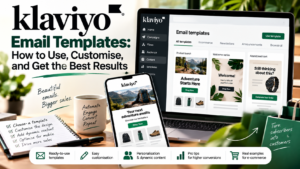
One of the first things most new Klaviyo users want to know is how the email templates work. Whether you are setting up your first welcome series or rebuilding an abandoned cart flow, the template you use determines how your emails look and how much time it takes to create and maintain them.
This guide covers everything you need to know about Klaviyo’s email templates: the different types available, how to customise them, how to use dynamic content blocks, and the design and copy principles that make a real difference to email performance.
The Three Ways to Build Emails in Klaviyo
Klaviyo gives you three distinct approaches to email creation, each suited to different needs and skill levels.
The drag-and-drop editor
This is the most commonly used option and the one most users start with. The drag-and-drop editor lets you build emails visually by adding, removing, and rearranging content blocks: text, images, buttons, product blocks, dividers, and social media links. No coding is required.
The editor is intuitive and produces clean, mobile-responsive emails. Most of the pre-built templates in Klaviyo’s library are designed to be used and customised in the drag-and-drop editor.
The HTML editor
For users with coding knowledge, the HTML editor gives you complete control over the email’s structure and styling. You write or paste raw HTML, and Klaviyo renders it exactly as written. This is the right choice if you have a specific design that the drag-and-drop editor cannot reproduce, or if you are working from a branded template built by a designer.
The HTML editor also supports Klaviyo’s templating language, which allows you to use dynamic content, conditional logic, and personalisation variables within your HTML code.
The text-only editor
Plain text emails have no HTML formatting. They look like a regular email from a person rather than a marketing message from a brand. For certain types of emails, particularly personal or relationship-focused sequences like win-back campaigns or personal check-ins, a plain text format can actually outperform a designed template because it feels more genuine.
Klaviyo’s Pre-Built Template Library
Klaviyo includes a library of pre-built templates covering the most common e-commerce email types. These are designed to be used as starting points and customised to match your brand. The main categories include:
The templates are mobile-responsive by default, which matters because a significant proportion of e-commerce emails are opened on mobile devices. They are also designed to work with Klaviyo’s dynamic content blocks, so product images and details can populate automatically from your connected store.
How to Customise a Klaviyo Template
The customisation process in the drag-and-drop editor follows a consistent pattern regardless of which template you start from.
Setting your brand colours and fonts
In the template editor, go to the Styles section in the left panel. Here you can set your brand’s primary colour, button colour, background colour, and font choices. Setting these once means they apply consistently across every block in the template. If you update them later, all blocks update together.
Klaviyo supports a limited set of web-safe fonts natively, with Google Fonts available as an additional option. For brand consistency, it is worth choosing a font family that matches your website rather than leaving the default in place.
Adding your logo
Replace the placeholder logo block with your own by clicking the image block and uploading your logo file. SVG and PNG formats with transparent backgrounds work best. Make sure the logo links to your website by adding the URL in the block’s link settings.
Customising text blocks
Click any text block to edit it directly in the editor. Klaviyo uses a rich text editor for body copy, so you can adjust font size, weight, alignment, and colour within individual text blocks. Keep your body text at a readable size, typically 15 to 16 pixels, and make sure your line height is generous enough for comfortable mobile reading.
Adjusting the layout
You can add, remove, duplicate, and reorder content blocks by dragging them in the left panel or using the controls that appear when you hover over a block in the canvas. Most templates use a single-column layout for the body, which works well on both desktop and mobile. Two-column product grids are also common for promotional emails.
Dynamic Content Blocks: The Most Powerful Feature
The most valuable capability in Klaviyo’s template system is dynamic content: content that changes based on who is receiving the email and what they have done on your store.
Product blocks
The product block pulls product information directly from your connected e-commerce store. In an abandoned cart email, it automatically displays the products the customer left in their cart, complete with images, names, and prices. In a post-purchase email, it can display complementary product recommendations based on what was purchased.
To add a product block, drag it into your template from the block panel. In the block settings, choose whether to show a specific product, the customer’s most recently viewed product, their cart contents, or a curated collection. The block handles the rest automatically.
Personalisation variables
Personalisation variables let you insert customer-specific information into your email copy. The most common is the first name variable, which inserts the customer’s first name wherever you place it. In Klaviyo, this is written as {{ first_name|default:’there’ }}, which inserts their first name if it is available or the word ‘there’ if it is not.
Other useful personalisation variables include the customer’s most recent order number, the total value of their last order, and the name of the last product they purchased. These can make transactional and post-purchase emails feel significantly more personal without any manual effort.
Conditional content blocks
Conditional blocks show or hide content based on a condition. For example, you can show a loyalty programme callout only to customers who have made more than two purchases, or display a different product recommendation to customers in different countries. This is done using Klaviyo’s templating language within the HTML editor, or via the conditional content feature in the drag-and-drop editor.
Best Practices for Klaviyo Email Design
A well-designed email does two things: it looks good and it makes it easy for the reader to take the action you want them to take. A few principles that consistently improve performance:
Keep the hierarchy clear
Every email should have one primary call to action. The visual hierarchy, through font size, colour contrast, and whitespace, should guide the reader’s eye toward that action. Multiple competing calls to action reduce conversion because they create decision friction.
Design for mobile first
More than half of marketing emails are opened on mobile devices. Klaviyo’s templates are mobile-responsive by default, but check your emails in the mobile preview before sending. Make sure buttons are large enough to tap comfortably, text is readable without zooming, and images are not so large that they slow load time on a mobile connection.
Use images purposefully
Images increase visual appeal and can significantly improve engagement, but they also increase load time and can trigger spam filters if the image-to-text ratio is too high. As a rough guide, aim for at least 60% text to 40% images. Always include alt text on images for readers who have image loading disabled.
Keep it short unless you have a reason to go long
Most marketing emails perform better when they are concise. The exception is educational or value-driven content where the reader has opted in specifically to receive detailed information. For promotional and transactional emails, brevity almost always works better.
Testing Your Templates
Before activating any email in a flow or sending a campaign, test it thoroughly:
Saving and Reusing Templates
Once you have built and customised a template you are happy with, save it to your template library. You can then use it as the starting point for future emails, which saves significant time and ensures brand consistency across your email programme. Klaviyo also allows you to clone existing emails within a flow, which is useful when you want to create a variation for A/B testing without rebuilding from scratch.
When to Use a Custom HTML Template
For most e-commerce businesses, the drag-and-drop editor with a customised template is sufficient. There are situations where a custom HTML template makes sense:
If you go the HTML route, Klaviyo’s documentation on its templating language is comprehensive and their support team can help with implementation questions.
Klaviyo’s full template library and editor are available on all plans, including the free plan.
Start free with Klaviyo: lifecyclelab.io
No credit card required. Build and test your first email templates before spending anything.