
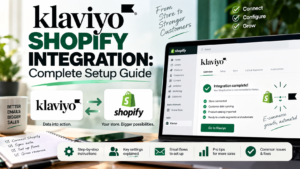
Klaviyo and Shopify are one of the most commonly used combinations in e-commerce marketing, and for good reason. When the integration is set up correctly, Klaviyo pulls in detailed customer and purchase data from your Shopify store in real time, giving you the foundation for precise segmentation, powerful automation flows, and accurate revenue attribution.
This guide covers everything you need to know about connecting Klaviyo to Shopify: the setup process, what data syncs automatically, how to use that data effectively, and the common issues worth watching out for.
Why the Klaviyo and Shopify Integration Matters
The value of any email marketing platform for an e-commerce store depends almost entirely on the quality of the data it has access to. An email platform that knows only someone’s name and email address can send them an email. A platform that knows what they bought, when they bought it, how much they spent, what they browsed without buying, how many times they have ordered, and what their predicted lifetime value is can send them the right email at the right time with the right content.
The Klaviyo and Shopify integration is what makes that second kind of email marketing possible. Without it, you are working with a fraction of the data your store generates every day.
How to Connect Klaviyo to Shopify
The integration is straightforward and takes around ten to fifteen minutes to complete.
Step 1: Install Klaviyo from the Shopify App Store
Go to the Shopify App Store and search for Klaviyo. Click Add App and follow the installation prompts. You will be asked to log in to your existing Klaviyo account or create a new one.
Step 2: Authorise the integration
During installation, Shopify will ask you to confirm the permissions Klaviyo needs. These include reading customer data, order information, and product details. These permissions are what allow Klaviyo to sync your store’s data. Accept the permissions to proceed.
Step 3: Configure your data sync settings
Once connected, Klaviyo will ask whether you want to sync your historical data. Unless you have a specific reason not to, say yes. Importing your historical order data means your segments and flows can immediately use purchase history, rather than starting from scratch with only new activity.
The historical sync can take anywhere from a few minutes to several hours depending on the size of your order history. During this time, Klaviyo is building profiles for every customer who has ever purchased from your store.
Step 4: Verify the integration is working
Go to Klaviyo’s Analytics section and check the Metrics view. You should see Shopify-specific events appearing, including Placed Order, Ordered Product, Started Checkout, and Viewed Product. If these are populating, your integration is working correctly.
If events are not appearing after a few hours, the most common cause is a conflict with another app on your Shopify store. Klaviyo has a troubleshooting guide specifically for this, and their support team is responsive if you need help diagnosing the issue.
What Data Syncs Automatically
Once connected, Klaviyo pulls the following data from your Shopify store in real time:
Customer data
Order data
Behavioural data
This combination of customer, order, and behavioural data is what makes Klaviyo’s segmentation so powerful for Shopify stores. Every piece of it is available as a filter when building segments or as a trigger when building flows.
Using the Integration for Segmentation
With your Shopify data syncing into Klaviyo, you can build segments that were not possible before. A few examples of the kind of segments that become immediately available:
Each of these segments updates automatically as customer behaviour changes. You build them once and they stay current without any manual maintenance.
Using the Integration for Automation Flows
The Shopify integration enables Klaviyo’s most valuable automation flows. Here are the key ones and how the integration powers them:
Abandoned cart flow
Triggered by the Checkout Started event. When a customer begins the checkout process on your Shopify store but does not complete it, Klaviyo fires the trigger and your abandoned cart sequence begins. The flow can dynamically display the exact products they abandoned, pulled directly from Shopify, in each email.
Post-purchase flow
Triggered by the Placed Order event. When a customer completes a purchase on Shopify, Klaviyo triggers your post-purchase sequence automatically. You can personalise the emails based on what they bought, how much they spent, and whether it was their first or a subsequent order.
Browse abandonment flow
Triggered by the Viewed Product event. When a customer browses your Shopify store, views a product, and then leaves without adding it to their cart, Klaviyo can trigger a light-touch follow-up sequence. This works best for customers who are already in your Klaviyo database, either through a previous purchase or an email opt-in.
Win-back flow
Triggered by a time-based condition using order history data. When a customer who has previously purchased has not placed a new order within a defined window, typically 90 to 180 days, the win-back flow begins. The Shopify order data makes it possible to reference their purchase history in the emails, making the messaging feel relevant rather than generic.
Klaviyo’s Shopify-Specific Features
Beyond the standard data sync, Klaviyo has several features that are specifically designed around the Shopify platform:
Shopify discount code generation
Klaviyo can generate unique, single-use Shopify discount codes automatically within flows. When your abandoned cart flow reaches the incentive email, Klaviyo creates a code, inserts it into the email, and marks it as used once the customer redeems it. This prevents codes from being shared publicly and appearing on voucher websites.
Product recommendations
Klaviyo can pull product recommendations from your Shopify catalogue dynamically into emails, based on what a customer has previously purchased or browsed. This makes post-purchase and win-back emails significantly more relevant without requiring manual content updates.
Revenue attribution
Because Klaviyo has access to your Shopify order data, it can attribute revenue accurately to the emails and flows that drove it. You can see exactly how much revenue each campaign and each flow email generated, with configurable attribution windows. This level of reporting is not possible without a deep integration.
Common Issues and How to Fix Them
Events not appearing in Klaviyo
The most common cause is a JavaScript conflict with another app on your Shopify store. Check your Shopify theme code to confirm Klaviyo’s tracking snippet is present and loading correctly. Klaviyo’s help documentation has a step-by-step troubleshooting guide for this specific issue.
Historical data not importing correctly
If your historical orders are not appearing in Klaviyo profiles, try disconnecting and reconnecting the integration and triggering a fresh historical sync. If the issue persists, Klaviyo’s support team can run a manual sync from their end.
Duplicate profiles
If customers have placed orders using different email addresses, Klaviyo may create separate profiles for each. Klaviyo has a profile merging tool, but prevention is better: encourage account creation on your Shopify store to reduce the likelihood of order-by-order address variation.
Getting the Most from the Integration
A few practical steps that significantly improve the value you get from the Klaviyo and Shopify connection:
If you are not yet using Klaviyo with your Shopify store, the free plan is a genuine no-risk starting point.
Start free with Klaviyo: lifecyclelab.io
No credit card required. The Shopify integration is available on all plans including free.